Register WebStorm注册WebStorm
You can evaluate WebStorm for up to 30 days. 您可以对WebStorm进行长达30天的评估。After that, you have to buy a license to continue using WebStorm.之后,您必须购买许可证才能继续使用WebStorm。
-
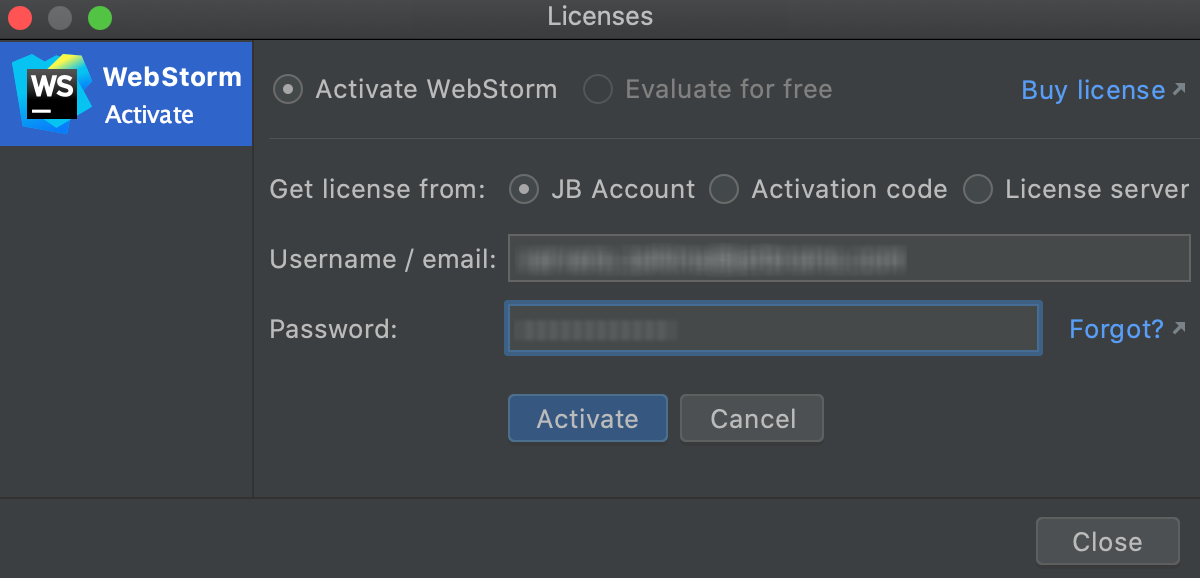
Do one of the following to open the Licenses dialog:执行以下操作之一以打开“许可证”对话框:-
From the main menu, select从主菜单中,选择 -
On the Welcome screen, click在欢迎屏幕上,单击
-
-
Select how you want to register WebStorm or a plugin that requires a license:选择注册WebStorm或需要许可证的插件的方式:Option选项Description描述JB Account Register using the JetBrains Account.使用JetBrains帐户注册。If you are using two-factor authentication for your JetBrains Account, specify the generated app password instead of the primary JetBrains Account password.如果您对JetBrains帐户使用双因素身份验证,请指定生成的应用程序密码,而不是主要JetBrains帐户密码。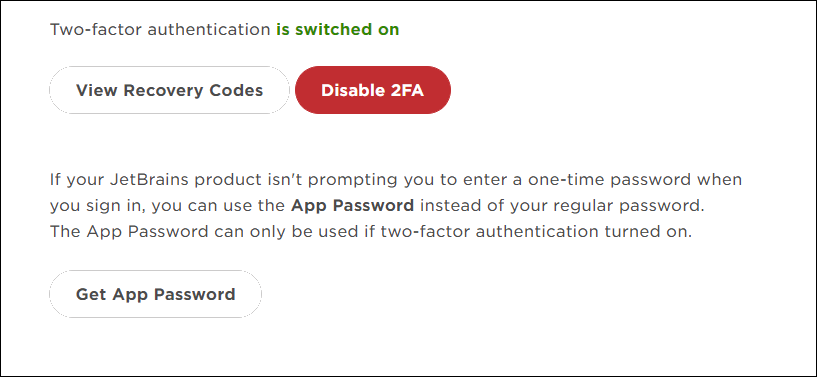
Activation code激活码Register using an activation code.使用激活码注册。You can get an activation code when you purchase a license for the corresponding product.您可以在购买相应产品的许可证时获得激活码。License server许可证服务器Register using the Floating License Server.
When performing silent install or managing WebStorm installations on multiple machines, you can set the在多台计算机上执行静默安装或管理WebStorm安装时,可以设置JETBRAINS_LICENSE_SERVERenvironment variable to point the installation to the Floating License Server URL.JETBRAINS_LICENSE_SERVER环境变量以将安装指向浮动许可服务器URL。Alternatively, you can set the Floating License Server URL by adding the或者,您可以通过添加-DJETBRAINS_LICENSE_SERVERJVM option.-DJETBRAINS_License_ServerJVM选项来设置浮动许可服务器URL。WebStorm detects the system proxy URL during initial startup and uses it for connecting to the JetBrains Account and Floating License Server.WebStorm在初始启动期间检测系统代理URL,并将其用于连接JetBrains帐户和浮动许可证服务器。To override the URL of the system proxy, add the要覆盖系统代理的URL,请添加-Djba.http.proxyJVM option.-Djba.http.proxyJVM选项。Specify the proxy URL as the host address and optional port number:指定代理URL作为主机地址和可选端口号:proxy-host[:proxy-port].proxy-host[:proxy-port]。For example:例如:-Djba.http.proxy=http://my-proxy.com:4321.-Djba.http.proxy=http://my-proxy.com:4321。If you want to disable proxy detection entirely and always connect directly, set the property to如果要完全禁用代理检测并始终直接连接,请将属性设置为-Djba.http.proxy=direct.-Djba.http.proxy=direct。
Early Access Program早期访问计划
Pre-release builds of WebStorm that are part of the Early Access Program are shipped with a 30-days license. 作为早期访问计划一部分的WebStorm预发布版本附带30天的许可证。Log in with your JetBrains Account to start using WebStorm EAP.使用JetBrains帐户登录以开始使用WebStorm EAP。
For authorization, you can use either your JetBrains Account directly or your Google, GitHub, GitLab, or BitBucket account. 为了获得授权,您可以直接使用JetBrains帐户,也可以使用Google、GitHub、GitLab或BitBucket帐户。You can also create a new JetBrains Account if you don't have one yet.如果您还没有JetBrains帐户,您还可以创建一个新的JetBrains帐户。
Login options登录选项
-
Click Log in with JetBrains Account.单击使用JetBrains帐户登录。You will be automatically redirected to the JetBrains Account website.您将自动重定向到JetBrains帐户网站。 -
On the website, log in using your JetBrains Account credentials.在网站上,使用JetBrains帐户凭据登录。 -
Once you've successfully logged in, you can start using WebStorm EAP by clicking Get Started.成功登录后,可以通过单击“开始”开始使用WebStorm EAP。If you want to participate in EAP-related activities and provide your feedback, make sure to select the Send me EAP-related feedback requests and surveys option.如果您希望参与EAP相关活动并提供反馈,请确保选择“向我发送EAP相关反馈请求和调查”选项。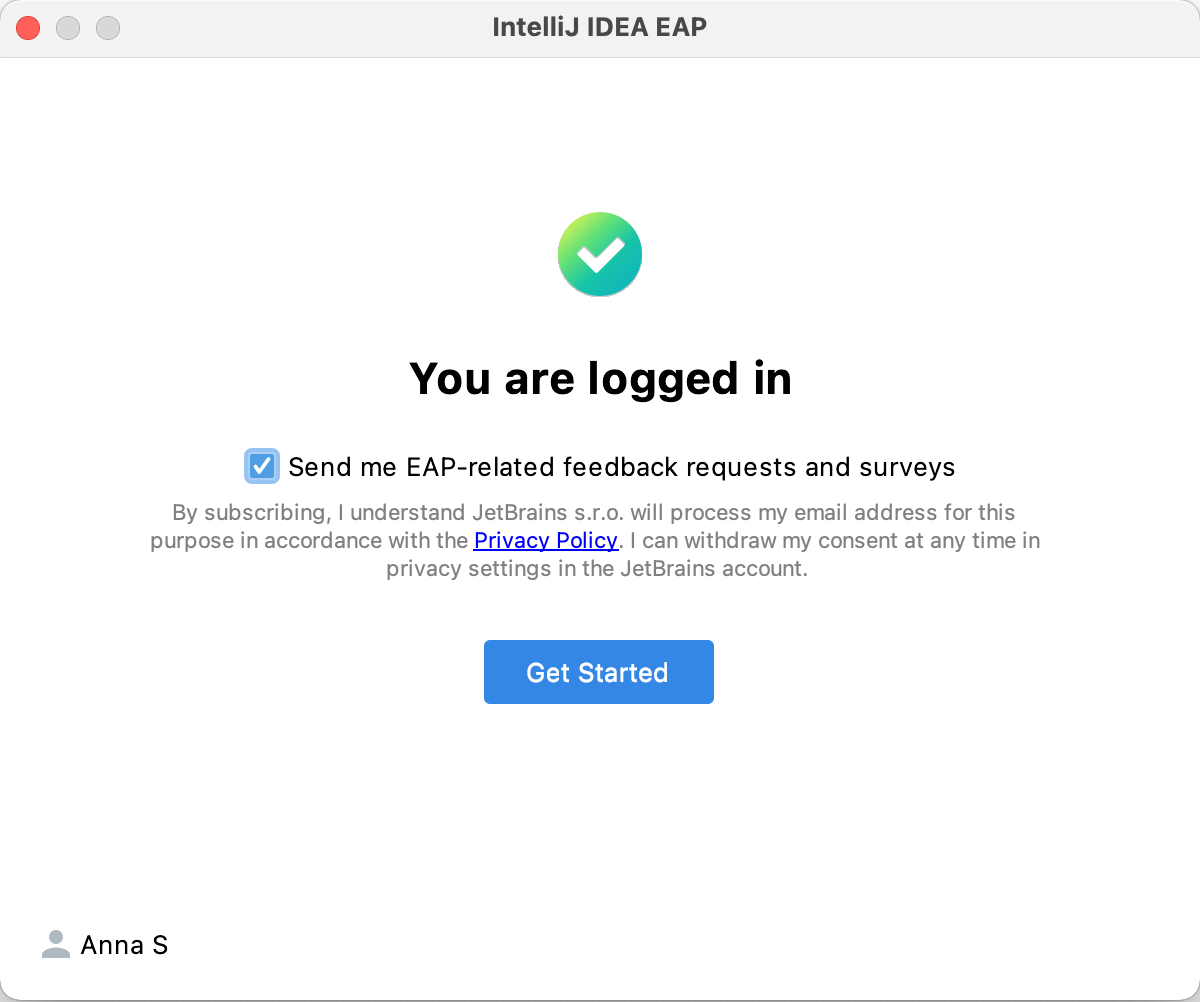
-
Click the Create an account link.单击“创建帐户”链接。You will be automatically redirected to the JetBrains Account website.您将自动重定向到JetBrains帐户网站。Follow the instructions on the website to register a new JetBrains Account.按照网站上的说明注册新JetBrains帐户。 -
Once you've successfully logged in, you can start using WebStorm EAP by clicking Get Started.成功登录后,可以通过单击“开始”开始使用WebStorm EAP。If you want to participate in EAP-related activities and provide your feedback, make sure to select the Send me EAP-related feedback requests and surveys option.如果您希望参与EAP相关活动并提供反馈,请确保选择“向我发送EAP相关反馈请求和调查”选项。
-
Click the icon of the service that you want to use for logging in.单击要用于登录的服务的图标。You will be redirected to the login page on the website of the selected service.您将被重定向到所选服务网站上的登录页面。 -
Once you've successfully logged in, you can start using WebStorm EAP by clicking Get Started.成功登录后,可以通过单击“开始”开始使用WebStorm EAP。If you want to participate in EAP-related activities and provide your feedback, make sure to select the Send me EAP-related feedback requests and surveys option.如果您希望参与EAP相关活动并提供反馈,请确保选择“向我发送EAP相关反馈请求和调查”选项。
Log in with an authorization token使用授权令牌登录
An authorization token is a way to log in to your JetBrains Account if your system doesn't allow for redirection from the IDE directly, for example, due to your company's security policy. 授权令牌是一种登录JetBrains帐户的方法,如果您的系统不允许直接从IDE重定向,例如,由于您公司的安全策略。WebStorm recognizes when redirection to the JetBrains Account website is impossible. WebStorm可以识别何时无法重定向到JetBrains帐户网站。It enables you to copy a link to generate an authorization token manually.它允许您复制链接以手动生成授权令牌。
-
Click Copy link and open the copied link in your browser.单击“复制链接”,然后在浏览器中打开复制的链接。 -
Log in to your JetBrains Account to generate an authorization token.登录JetBrains帐户以生成授权令牌。After that, copy the token, paste it to the IDE authorization token field and click Check token.之后,复制令牌,将其粘贴到IDE授权令牌字段,然后单击检查令牌。 -
Once you've successfully logged in, you can start using WebStorm EAP by clicking Get Started.成功登录后,可以通过单击“开始”开始使用WebStorm EAP。If you want to participate in EAP-related activities and provide your feedback, make sure to select the Send me EAP-related feedback requests and surveys option.如果您希望参与EAP相关活动并提供反馈,请确保选择“向我发送EAP相关反馈请求和调查”选项。