Register注册 IntelliJ IDEA
You can evaluate IntelliJ IDEA Ultimate for up to 30 days. 您可以对IntelliJ IDEA Ultimate进行长达30天的评估。After that, buy and register a license to continue using the product.之后,购买并注册许可证以继续使用该产品。
-
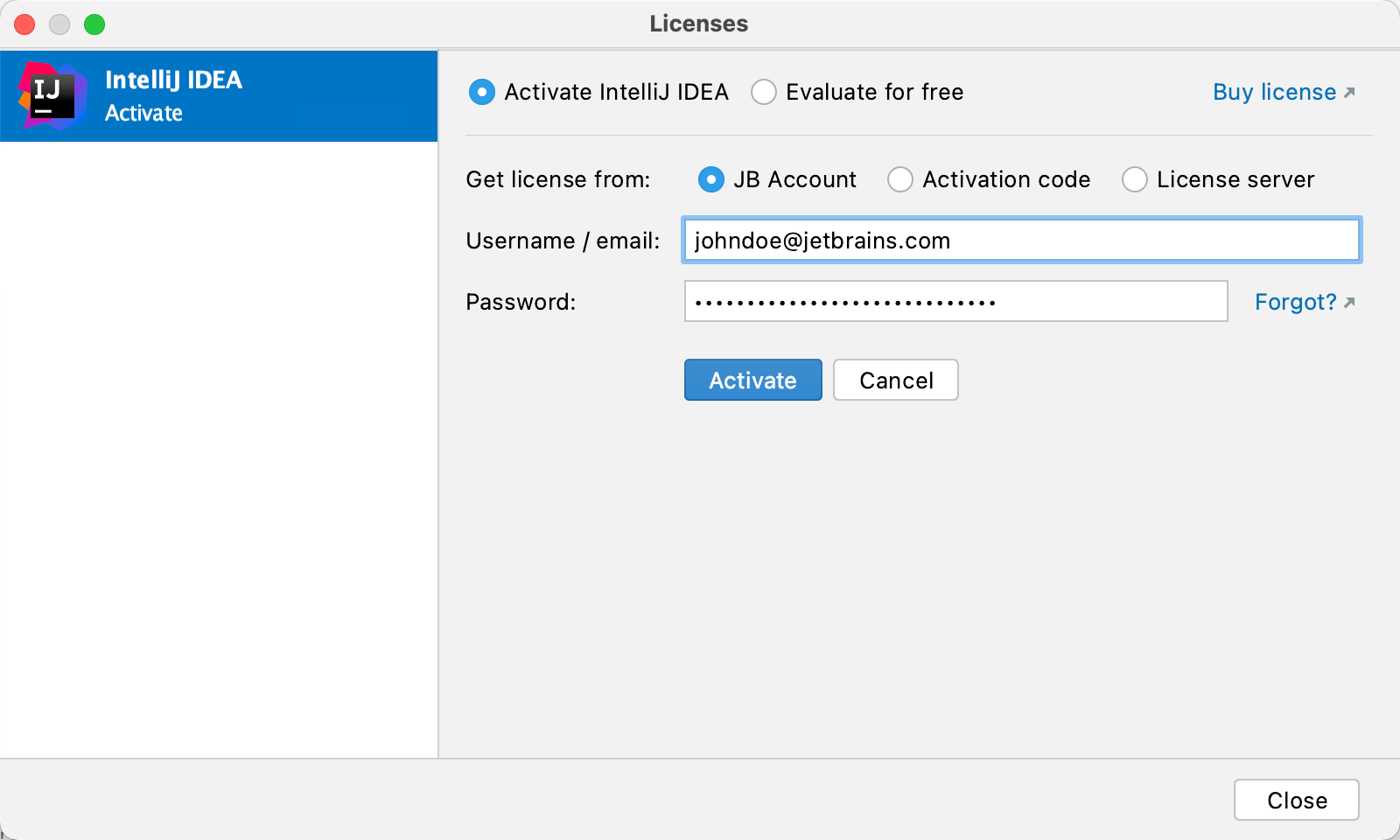
Do one of the following to open the Licenses dialog:执行以下操作之一以打开“许可证”对话框:-
From the main menu, select从主菜单中,选择“帮助”|“注册” -
On the Welcome screen, click在“欢迎”屏幕上,单击“帮助”|“管理许可证”
-
-
Select how you want to register IntelliJ IDEA or a plugin that requires a license:选择注册IntelliJ IDEA或需要许可证的插件的方式:Option Description描述JB Account Register using the JetBrains Account.
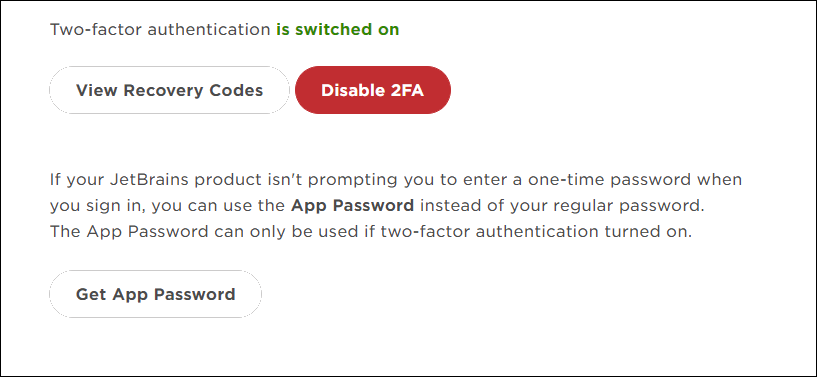
If you are using two-factor authentication for your JetBrains Account, specify the generated app password instead of the primary JetBrains Account password.
Activation code Register using an activation code.
You can get an activation code when you purchase a license for the corresponding product.
License server Register using the Floating License Server.
When performing silent install or managing IntelliJ IDEA installations on multiple machines, you can set the
JETBRAINS_LICENSE_SERVERenvironment variable to point the installation to the Floating License Server URL.Alternatively, you can set the Floating License Server URL by adding the
-DJETBRAINS_LICENSE_SERVERJVM option.IntelliJ IDEA detects the system proxy URL during initial startup and uses it for connecting to the JetBrains Account and Floating License Server. To override the URL of the system proxy, add the
-Djba.http.proxyJVM option. Specify the proxy URL as the host address and optional port number:proxy-host[:proxy-port]. For example:-Djba.http.proxy=http://my-proxy.com:4321.If you want to disable proxy detection entirely and always connect directly, set the property to
-Djba.http.proxy=direct.
Early Access Program
Pre-release builds of IntelliJ IDEA Ultimate that are part of the Early Access Program are shipped with a 30-days license. Log in with your JetBrains Account to start using IntelliJ IDEA Ultimate EAP.
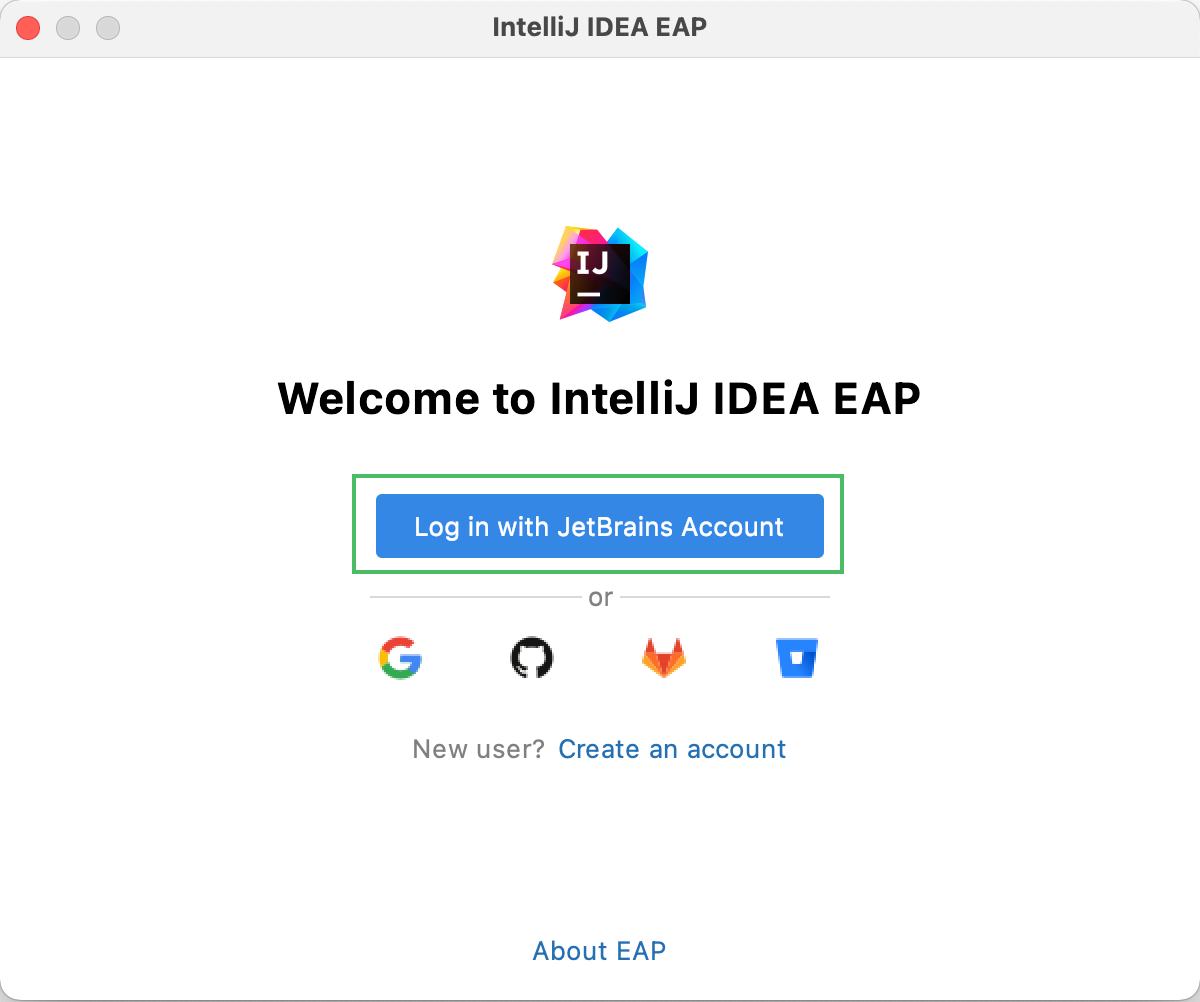
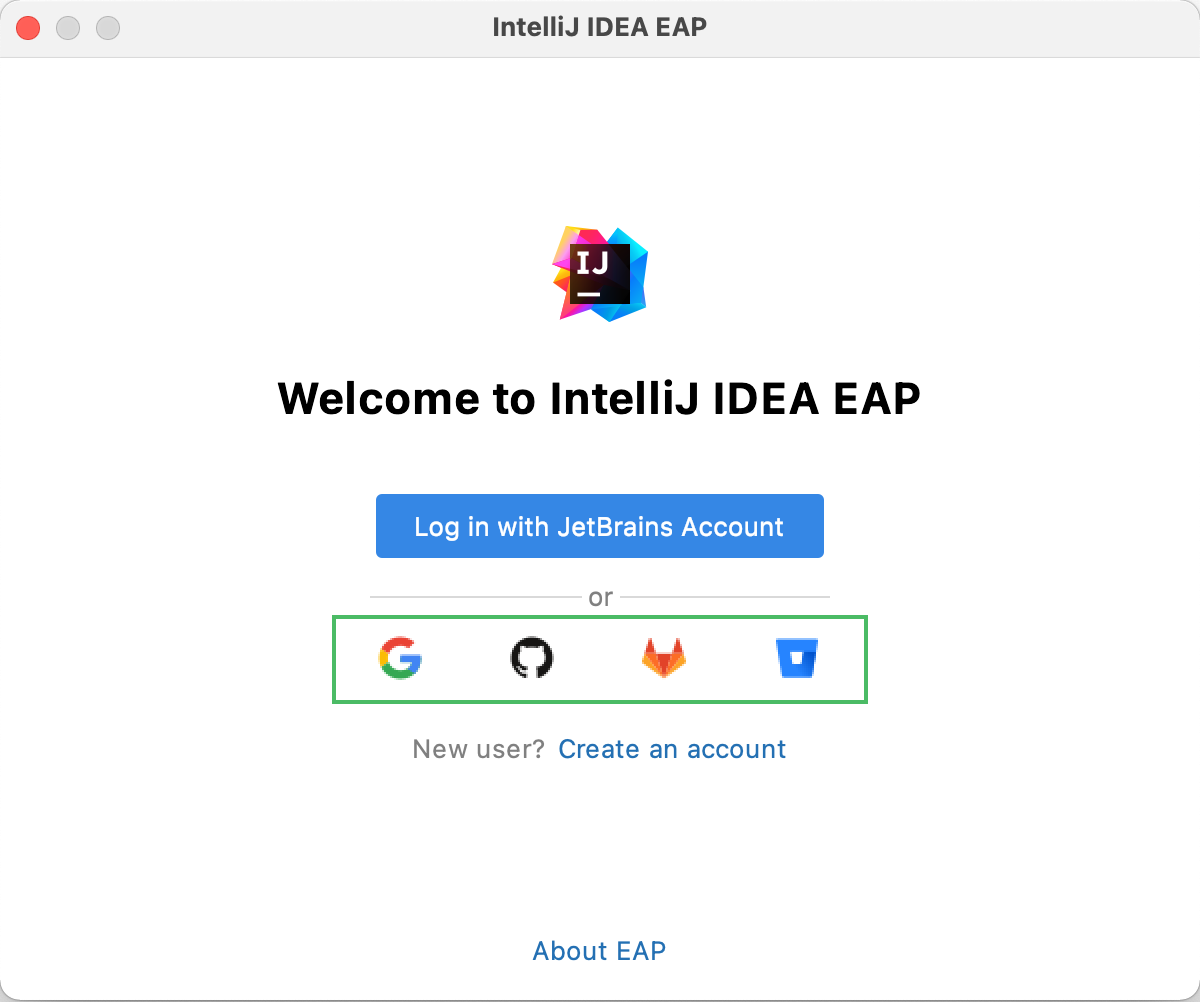
For authorization, you can use either your JetBrains Account directly or your Google, GitHub, GitLab, or BitBucket account. You can also create a new JetBrains Account if you don't have one yet.
Login options
-
Click Log in with JetBrains Account. You will be automatically redirected to the JetBrains Account website.
-
On the website, log in using your JetBrains Account credentials.
-
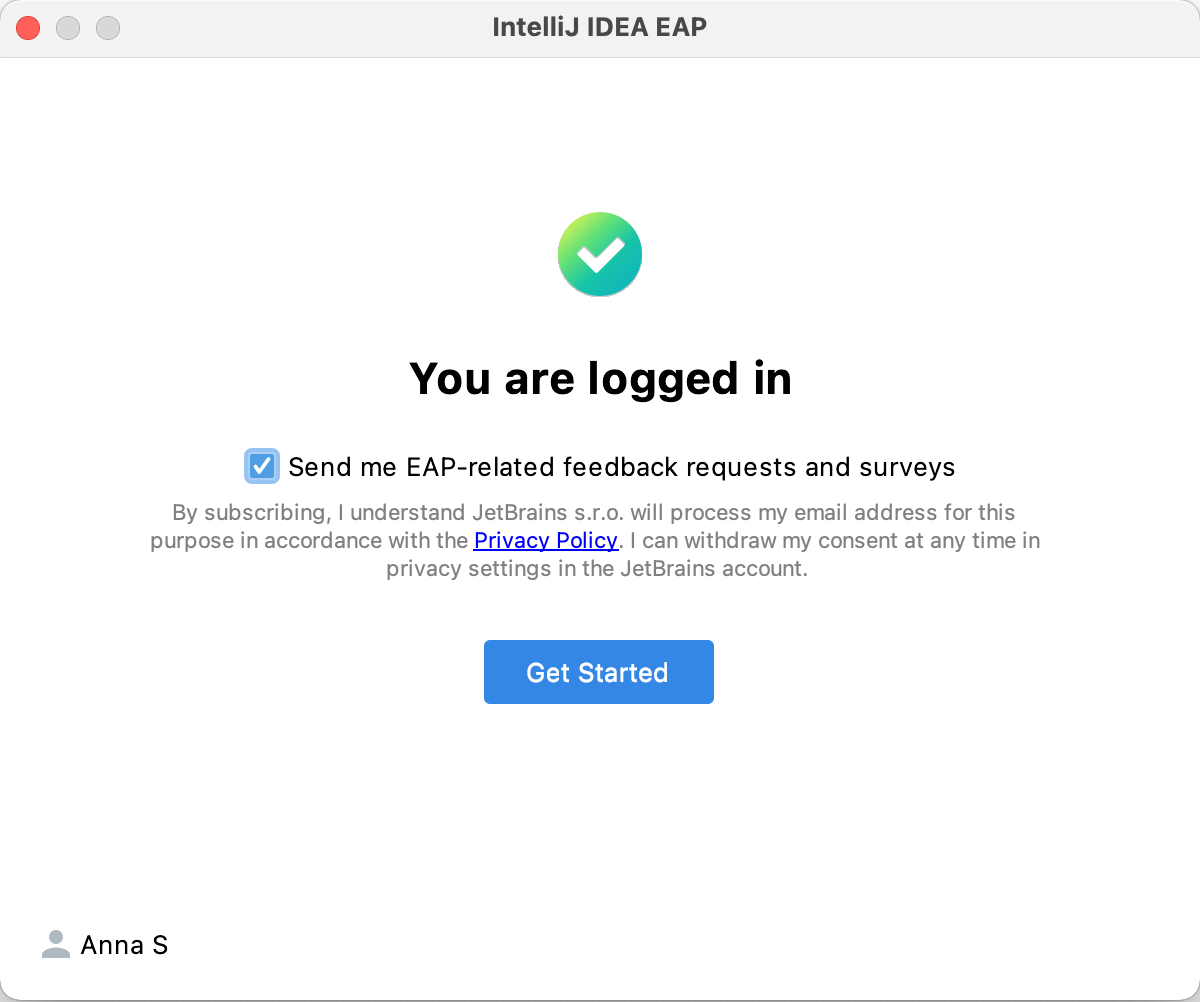
Once you've successfully logged in, you can start using IntelliJ IDEA EAP by clicking Get Started.
If you want to participate in EAP-related activities and provide your feedback, make sure to select the Send me EAP-related feedback requests and surveys option.
-
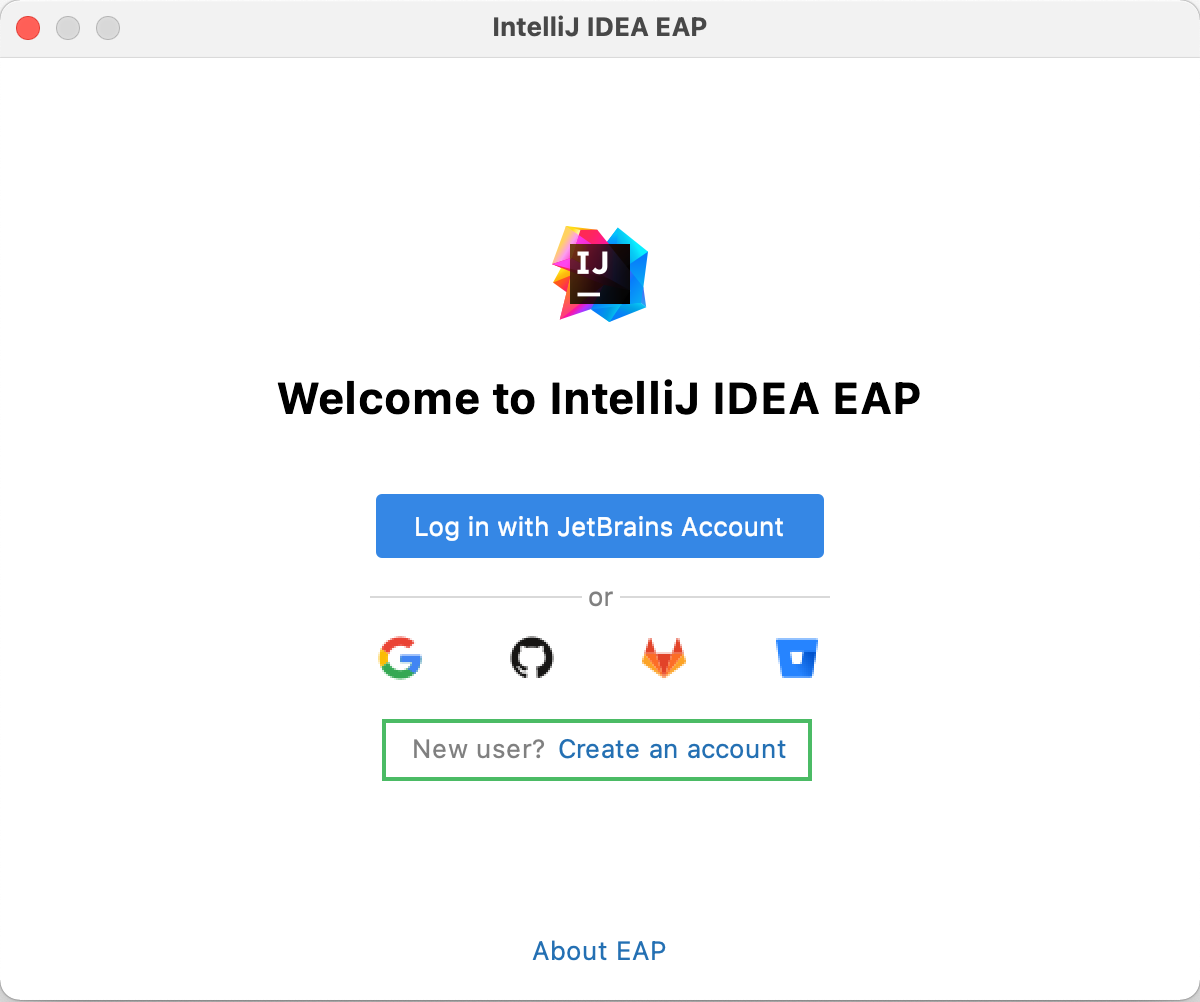
Click the Create an account link. You will be automatically redirected to the JetBrains Account website. Follow the instructions on the website to register a new JetBrains Account.
-
Once you've successfully logged in, you can start using IntelliJ IDEA EAP by clicking Get Started.
If you want to participate in EAP-related activities and provide your feedback, make sure to select the Send me EAP-related feedback requests and surveys option.
-
Click the icon of the service that you want to use for logging in. You will be redirected to the login page on the website of the selected service.
-
Once you've successfully logged in, you can start using IntelliJ IDEA EAP by clicking Get Started.
If you want to participate in EAP-related activities and provide your feedback, make sure to select the Send me EAP-related feedback requests and surveys option.
Log in with an authorization token
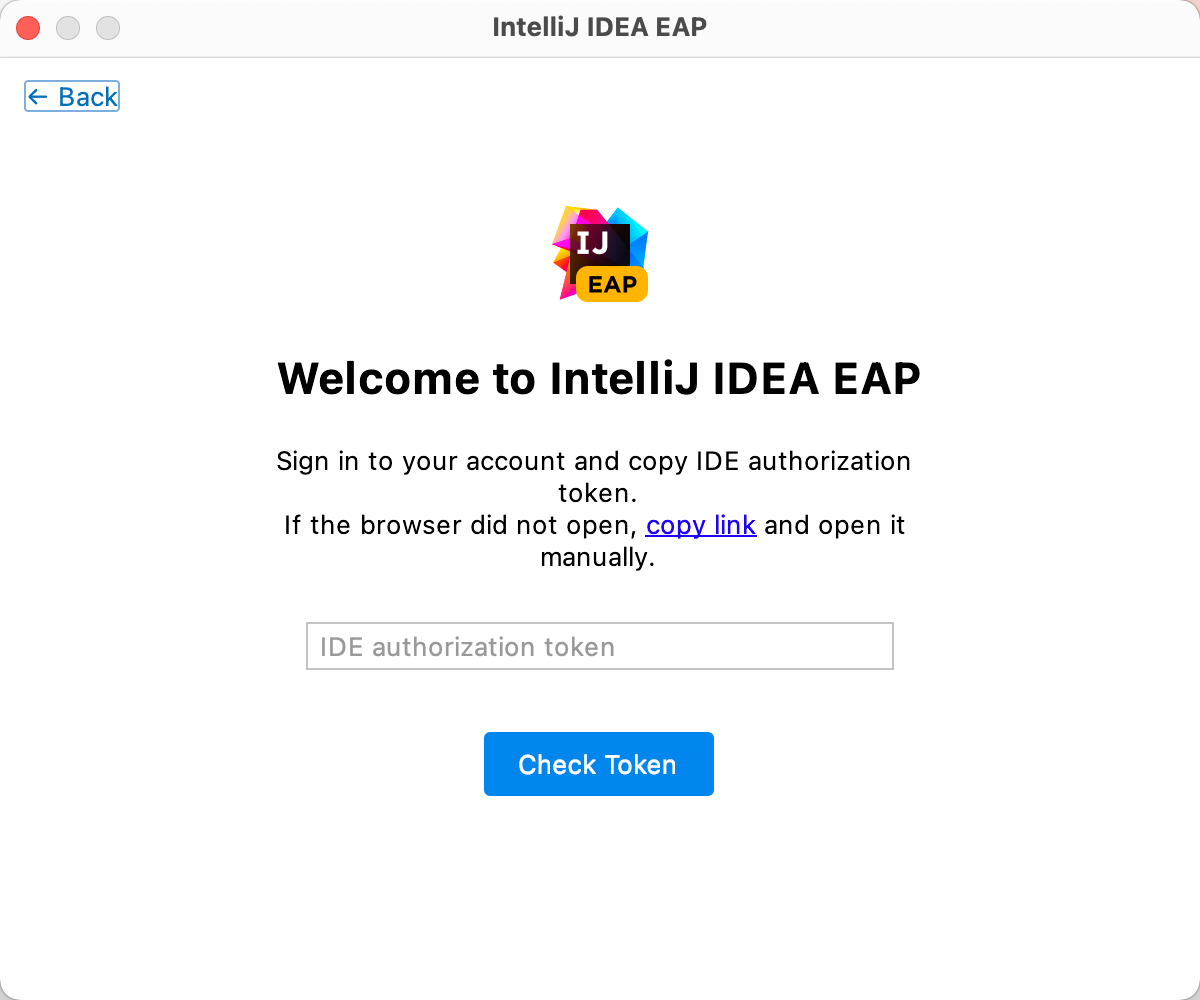
An authorization token is a way to log in to your JetBrains Account if your system doesn't allow for redirection from the IDE directly, for example, due to your company's security policy. IntelliJ IDEA recognizes when redirection to the JetBrains Account website is impossible. It enables you to copy a link to generate an authorization token manually.
-
Click Copy link and open the copied link in your browser.
-
Log in to your JetBrains Account to generate an authorization token. After that, copy the token, paste it to the IDE authorization token field and click Check token.
-
Once you've successfully logged in, you can start using IntelliJ IDEA EAP by clicking Get Started.
If you want to participate in EAP-related activities and provide your feedback, make sure to select the Send me EAP-related feedback requests and surveys option.